If you’ve opened WhatsApp Web only to find that it’s not loading, you’re not alone. Many users experience this issue at some point, and several factors can contribute to it. In this article, we’ll explore the reasons behind WhatsApp Web’s loading issues and provide various solutions to help you get it back up and running smoothly.
Clear Your Browser Cache
One of the primary reasons why WhatsApp Web may not load is related to your browser’s cache. Cached data can sometimes become outdated or corrupted, affecting the application’s performance.
Clear Cache in Google Chrome
Identify your browser: If you’re using Google Chrome, start by accessing the settings. Open the settings menu: Click on the three vertical dots in the top right corner, then select Settings.
Clear cache: Navigate to Privacy and security > Clear browsing data. Select “Cached images and files” and click Clear data. This process typically resolves loading issues for many users.
Clear Cache in Firefox
Open settings: For Firefox users, click on the three horizontal lines in the top right corner and choose Options.
Find privacy settings: Go to Privacy & Security, then scroll down to the Cookies and Site Data section.
Clear cache: Click on Clear Data and select “Cached Web Content”. Confirm your choice to enhance WhatsApp Web performance.
Check Internet Connection
Slow or unstable internet connections can prevent WhatsApp Web from loading properly. Ensuring your internet connection is up to speed resolves many common problems.
Test Your Connection Speed
Run a speed test: Use a speed test website like Speedtest.net to check your network performance.
Review results: Look for download and upload speeds that meet the requirements for WhatsApp Web to function properly. Improve connection: If the speeds are low, consider reconnecting your router or calling your service provider for assistance.
Switch Network
Try a different network: If you’re on Wi-Fi, switch to mobile data (or vice versa) to see if that resolves your loading issues.
Connect via wired connection: Using an Ethernet cable for a wired connection can often provide a more stable internet access.
Update Your Browser
Using an outdated browser version can cause compatibility issues with WhatsApp Web. Ensuring you’re running the latest version can help alleviate these problems.
Update in Google Chrome
Access settings: Click on the three dots, navigate to Help, and select About Google Chrome. Check for updates: Chrome will automatically check for available updates and install them.
Update in Firefox
Open help menu: From the three horizontal lines, select Help and click on About Firefox. Update the browser: Firefox checks for updates, downloading and installing them automatically.
Disable Browser Extensions
Some browser extensions can interfere with the proper functioning of web applications like WhatsApp Web. Disabling these extensions can often resolve loading issues.
Cache Clearing
Easily remove outdated data from your browser to improve loading times.
Connection Check
Test your internet speed to ensure stability for WhatsApp Web.
Browser Update
Keep your browser up to date for the best compatibility with WhatsApp Web.
Disable Extensions
Turn off conflicting browser extensions that could hinder functionality.
Device Restart
Restart your device to refresh settings and clear potential glitches.
FAQ Section
Find answers to common queries regarding WhatsApp Web issues.
Disable Extensions in Chrome
Open the extensions page: Type chrome://extensions/ in your address bar.
Locate unwanted extensions: Identify any extensions that may conflict with WhatsApp Web.
Disable or remove them: Toggle off any suspicious extensions or click on Remove to uninstall them completely.
Disable Extensions in Firefox
Access the Add-ons Manager: Click on the three horizontal lines, select Add-ons, and then Extensions.
Turn off extensions: Disable extensions one at a time to identify any potential problems with WhatsApp Web.
Restart Your Device
Sometimes, a simple restart of your device can do wonders in resolving technical glitches affecting WhatsApp Web.
If WhatsApp Web is not loading, try clearing your browser’s cache in Google Chrome or Firefox, as outdated cached data can often cause these issues.
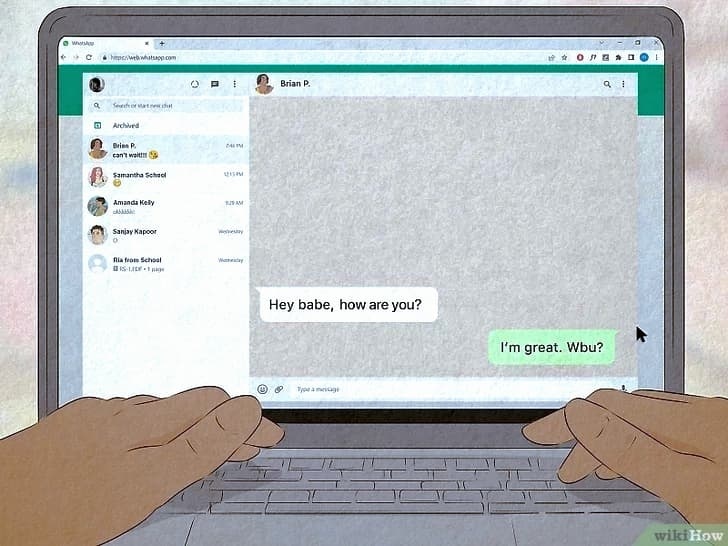
Restart on Windows
Do a complete shutdown: Click on the Start button, select Power, and choose Restart.
Open WhatsApp Web: After the device restarts, open your browser and try loading WhatsApp Web again.
Restart on Mac
Use the Apple menu: Click on the Apple logo in the top left corner and select Restart.
Access WhatsApp Web: Once restarted, check if the loading issue persists.
Frequently Asked Questions
Why does WhatsApp Web show a blank screen?
This can occur due to outdated browser versions or cache issues. Clearing the cache and updating your browser often resolves the problem.
What should I do if WhatsApp Web says “Connecting”?
This usually indicates a poor network connection. Check your internet speed and consider switching networks.
Can I use WhatsApp Web without a phone?
No, WhatsApp Web requires your phone to be connected to the internet to mirror messages on your computer.
In conclusion, if WhatsApp Web is not loading, the solutions discussed above can help troubleshoot and resolve these issues effectively. Always start with the simpler solutions, such as clearing your cache or checking your internet connection, before moving on to more complex fixes. By following these steps, you can ensure a seamless experience with WhatsApp Web.