
WhatsApp Web
  • WhatsApp Web
  • ws web login
  • Blog
WA web
Home /Blog/How to register a new WhatsApp account in 2025?

How to register a new WhatsApp account in 2025?

2025年12月27日 | ws
Rate this post

YouTube视频封面

1ef90b26f5bf62ee8e4b226400508e6d

Table of Contents

Toggle
  • Register a WhatsApp account using your smartphone’s SIM number
    • Use the official WhatsApp mobile app
    • Use WhatsApp Business app for professional use
  • Create a WhatsApp account on a tablet without a SIM card
    • Link your tablet to your smartphone via WhatsApp Web
    • Use your phone’s hotspot for verification
  • Sign up for WhatsApp with a landline phone number
    • Request voice call verification
    • Ensure landline is reachable
  • Get a WhatsApp account using a virtual phone number
    • Choose a reputable provider
    • Verify virtual number with WhatsApp
  • Transition to a new WhatsApp account while keeping your data
    • Backup old account data
    • Restore data to new account
  • Common WhatsApp Web Questions and Answers
    • Can I register a new WhatsApp account directly via WhatsApp Web?
    • How do I link my new WhatsApp account to WhatsApp Web?
    • Why can’t I access WhatsApp Web after registering a new account?

Register a WhatsApp account using your smartphone’s SIM number

This is the most straightforward method for most people, as it leverages the SIM card already in your phone to verify your identity.

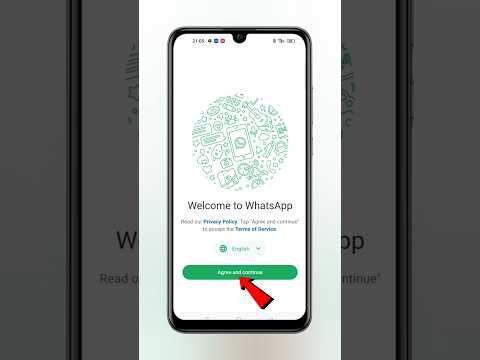
Use the official WhatsApp mobile app

  • Download WhatsApp app: Head to your device’s app store—Google Play Store for Android or Apple App Store for iOS. Type “WhatsApp Messenger” into the search bar and tap the install button. Wait 30 seconds to 2 minutes (depending on your internet speed) for the app to download and install. Once done, open it by tapping its icon on your home screen or app drawer.
  • Enter phone number: On first launch, WhatsApp asks for your phone number. Select your country code from the dropdown (e.g., +1 for US, +44 for UK) then type your full number (no leading zeros). Double-check for typos—entering the wrong number means no verification code.
  • Verify your number: WhatsApp sends a 6-digit SMS code. If your device auto-fills SMS codes, it’ll pop up instantly. If not, open your SMS inbox, find the code, and enter it. If no SMS arrives after 60 seconds, tap “Resend SMS” or “Call me” for a voice call with the code. Once verified, set your profile name and photo.
  • Use WhatsApp Business app for professional use

    For small business owners or freelancers, the Business app adds tools like automated welcome messages and business profiles.

  • Install WhatsApp Business: Go to your app store and search for “WhatsApp Business”. Tap install and wait for it to finish. Open the app once it’s ready.
  • Input business number: Select your country code and enter your business phone number (this can be a SIM or landline). Ensure it’s accessible—you’ll need it for verification.
  • Set up business profile: After verification, fill in details like your business name, category (e.g., “Café” or “Graphic Design”), address, and website link. This helps customers find and trust your brand faster.
  • Create a WhatsApp account on a tablet without a SIM card

    Tablets are great for messaging, but most lack a SIM. Here’s how to set up WhatsApp without one.

    Link your tablet to your smartphone via WhatsApp Web

    This method lets you mirror your smartphone’s WhatsApp account on your tablet.

  • Open WhatsApp Web: On your tablet, launch a browser (Chrome, Safari) and go to https://www.ws-whatsappsweb.com/. A QR code will appear on the screen.
  • Scan QR code: On your smartphone, open WhatsApp, tap the three dots (Android) or Settings > Linked Devices (iOS). Select “Link a Device” and point your phone’s camera at the QR code. Wait 2-3 seconds for it to scan.
  • Use WhatsApp on tablet: Once linked, your tablet shows all chats and messages. You can send/receive texts, photos, and videos—just make sure your smartphone stays connected to the internet.
  • Use your phone’s hotspot for verification

    If you want a separate WhatsApp account on your tablet, use your phone’s hotspot to get internet for verification.

  • Turn on phone hotspot: Go to your smartphone’s settings, select “Hotspot & Tethering” (Android) or “Personal Hotspot” (iOS), and toggle it on. Set a password to keep it secure.
  • Connect tablet to hotspot: On your tablet, go to Wi-Fi settings and select your phone’s hotspot name. Enter the password to connect.
  • Register with a new number: Download WhatsApp on your tablet and enter a new number (virtual or landline). The hotspot will let you receive the verification code via SMS or voice call.
  • Sign up for WhatsApp with a landline phone number

    WhatsApp allows landline numbers for registration—perfect for businesses or those who don’t want to use their mobile number.

    Request voice call verification

    Since landlines can’t receive SMS, use the voice call option.

  • Enter landline number: Open WhatsApp, select your country code, then type your full landline number (including area code, no special characters).
  • Choose voice call: Wait 60 seconds for the SMS option to time out, then tap “Call me”. You’ll get a voice call on your landline with a 6-digit code.
  • Enter verification code: Write down the code from the call and enter it into WhatsApp. Once verified, set up your profile.
  • Ensure landline is reachable

    Avoid delays by making sure your landline is ready for the verification call.

  • Check connection: Pick up the receiver to confirm a dial tone. Fix any line issues before proceeding.
  • Avoid busy lines: Don’t use the landline for other calls while waiting. If the line is busy, WhatsApp can’t reach you.
  • Inform others: Let family or colleagues know you’re waiting for an important call so they don’t interrupt.
  • Get a WhatsApp account using a virtual phone number

    Virtual numbers protect your privacy—ideal if you don’t want to share your personal number.

    Choose a reputable provider

    Not all virtual numbers work with WhatsApp, so pick a trusted option.

  • Research providers: Look for services like Google Voice (free for US/Canada), TextNow (free US/Canada numbers), or Twilio (paid, business-friendly). Read reviews to confirm they work with WhatsApp.
  • Sign up for a number: Create an account with the provider, then select a virtual number from your desired country. Some offer free trials; others charge a small fee.
  • Verify virtual number with WhatsApp

    Once you have your virtual number, use it to register.

  • Enter virtual number: Open WhatsApp, select your country code, then type the virtual number.
  • Request verification: Tap “Next” to start verification. Most providers send the code via SMS to their app/website.
  • Enter code: Copy the code from the provider’s app and paste it into WhatsApp. Once verified, you’re good to go.
  • Transition to a new WhatsApp account while keeping your data

    If you’re switching to a new number, you can retain your chats and media.

    Backup old account data

    Save your chats before switching.

  • Open backup settings: On your old account, tap three dots > Settings > Chats > Chat Backup.
  • Choose backup location: Select Google Drive (Android) or iCloud (iOS). Log in to your cloud account if prompted.
  • Start backup: Tap “Back Up Now”. Wait for it to finish—this takes time if you have lots of media.
  • Restore data to new account

    Bring your old chats to your new number.

  • Install WhatsApp: On your new device (or same device with new number), download WhatsApp and enter your new number.
  • Restore backup: When prompted, tap “Restore” to retrieve data from Google Drive/iCloud.
  • Check chats: After restoration, confirm all chats and media are present. If missing, retry the backup process.
  • Common WhatsApp Web Questions and Answers

    Can I register a new WhatsApp account directly via WhatsApp Web?

    No, you can’t register a new WhatsApp account through WhatsApp Web (https://www.ws-whatsappsweb.com/). WhatsApp Web is a companion tool that mirrors your mobile account—it doesn’t support registration on its own. To use WhatsApp Web, you first need to set up an account on a mobile device (using SIM, landline, or virtual number) then link it to the web interface. This is because WhatsApp Web doesn’t store data; it relies on your phone’s connection and data. If you try to access WhatsApp Web without an existing account, you’ll see a QR code but no way to register. So start with the mobile app first, then link to WhatsApp Web later.

    How do I link my new WhatsApp account to WhatsApp Web?

    Linking your new account to WhatsApp Web is easy. First, open WhatsApp on your smartphone and tap the three dots (Android) or go to Settings > Linked Devices (iOS). Next, tap “Link a Device” and scan the QR code displayed on WhatsApp Web (https://www.ws-whatsappsweb.com/) using your phone’s camera. Once scanned, your account will mirror on the web interface. You can send/receive messages, photos, and videos from your computer. Remember: your phone needs to stay connected to the internet for WhatsApp Web to work. If your phone goes offline, the web interface will show a “Phone not connected” message. Also, log out of WhatsApp Web when using public computers to keep your account secure.

    Why can’t I access WhatsApp Web after registering a new account?

    There are several reasons for this issue. First, check if your phone is connected to the internet—WhatsApp Web depends on your phone’s connection. If your phone is offline (no Wi-Fi/mobile data), the web interface won’t work. Second, ensure you’re using the latest version of WhatsApp on your phone. Outdated versions may have compatibility issues. Update WhatsApp via your app store if needed. Third, check your browser: WhatsApp Web works with Chrome, Firefox, Safari, and Edge, but not old browsers like Internet Explorer. Switch to a modern browser if necessary. Fourth, confirm you didn’t log out of WhatsApp Web from your phone—if you did, scan the QR code again to link. Finally, check for network restrictions: some work/school networks block WhatsApp Web. Try a VPN (if allowed) or switch to a different network. If none of these fix the issue, contact WhatsApp support for help.

    If you tried any of these methods to register your WhatsApp account, let me know how it went in the comments below! Did you run into any issues? I’m here to help.


    « Previous Post How to Easily Download WhatsApp on Huawei Phones in 2025?
    Next Post » How do you edit others’ nicknames on WhatsApp in 2025?

    Related Posts

    0b305ba323311e49078baf266a43f17b

    How to Search on WhatsApp Web Like a Pro in 2025?

    2025年11月18日
    api img 69885a4f8c555

    How to Use WhatsApp Web for Business?

    2026年2月8日
    api img 698824c4d0557

    Is WhatsApp Web Safe to Use?

    2026年2月8日
    b10cdbf8008b3a8643e98ac2b682dd36

    How to Generate a WhatsApp QR Code Easily in 2025?

    2025年12月17日
    api img 6988061b15e3d

    Can You Use WhatsApp Web Without Phone?

    2026年2月8日
    4f3ab2cd244a6e8930ca9f3828846d93

    How to Set Up WhatsApp Web Customer Support for Businesses 2025?

    2026年1月3日

    WhatsApp

    • Features
    • Download
    • WhatsApp Web
    • Business
    • Privacy

    Company

    • About Us
    • Careers
    • Newsroom
    • Brand Center

    Download

    • Mac/PC
    • Android
    • iPhone

    Support

    • Help Center
    • Twitter
    • Facebook
    • Contact Us
    Privacy Policy Terms of Service Cookie
    © 2024 WhatsApp LLC