Send Excel Files on WhatsApp Mobile App
Sending Excel files via the WhatsApp mobile app is straightforward, but there are a few tricks to make it even smoother. Let’s cover two ways to do this without any hassle.
Attach Excel Files Directly in Chat
This is the most common method, and it works for both Android and iOS devices.
Open chat: Start by opening the WhatsApp chat with the contact or group you want to send the Excel file to. On Android, you’ll see a paperclip icon at the bottom right corner; on iOS, it’s a plus (+) sign. Tap that icon to expand the attachment options—this is the first step to accessing your files. Pick Excel file: Next, select the “Documents” option from the list of attachment types (you’ll see others like Photos, Videos, etc.). This will take you to your device’s file manager. Navigate to the folder where your Excel file is saved—common places are Downloads, Documents, or a cloud storage folder if you synced it (like Google Drive or Dropbox). Once you find the file, tap it to select it. Send instantly: Finally, review the file name to make sure it’s the right one. WhatsApp will show you the file size—if it’s over 100MB, you might get an error (we’ll cover fixes for that later). If it’s under the limit, just tap the “Send” button, and the file will be delivered to your chat.
I’ve used this method dozens of times—last week, I sent a sales Excel sheet to my team via WhatsApp, and it took less than 10 seconds. Just remember to check the file size first; if it’s too big, you can compress it using an app like Zip & RAR (Android) or iZip (iOS) before sending.
Share Excel Files From Your Device’s File Manager
If you’re already in your file manager and don’t want to switch to WhatsApp first, this method is perfect.
Locate Excel file: Open your device’s file manager (like Files on iOS or My Files on Android). Go to the folder where your Excel file is stored—for example, if you downloaded it from an email, it’s probably in Downloads. Tap share option: Press and hold the Excel file until a menu pops up, then select the “Share” option. A list of apps will appear—scroll until you see WhatsApp, then tap it. Choose chat and send: WhatsApp will open with a list of your recent chats. Pick the contact or group you want to send the file to, then tap “Send”—that’s it! This method saves time because you don’t have to navigate through WhatsApp’s attachment options.
One thing to note: If you’re using an iOS device, the share menu might show WhatsApp only if you’ve used it recently. If not, you can swipe left to see more apps or tap “More” to find it. On Android, it’s usually right at the top of the share list.
Send Excel Files on WhatsApp Desktop or Web
If you prefer typing on a keyboard or working on a computer, sending Excel files via WhatsApp Desktop or Web is a great option.
Send Excel Files on WhatsApp Desktop App
The desktop app syncs with your mobile device, so any files you send will appear on both.
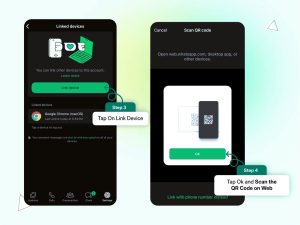
Open Desktop app: Launch the WhatsApp Desktop app on your computer. If it’s your first time using it, you’ll need to scan the QR code with your mobile WhatsApp (go to Settings > WhatsApp Web/Desktop on your phone). Attach file: Go to the chat where you want to send the Excel file. Look for the paperclip icon at the bottom of the chat window—tap it, then select “File” from the options. Select and send: A file explorer window will open (Windows Explorer for PC, Finder for Mac). Navigate to the Excel file on your computer (like in Documents or Downloads), select it, then click “Open”—the file will send immediately to your chat.
I use WhatsApp Desktop every day for work, and this method is my go-to for sending Excel files. It’s faster than switching between phone and computer, and I don’t have to worry about typos from typing on a small screen.
Send Excel Files via WhatsApp Web
You can also send Excel files using WhatsApp Web (https://www.ws-whatsappsweb.com/)—this is great if you don’t want to install the desktop app.
Access WhatsApp Web: Open your browser (Chrome, Firefox, or Safari works best) and go to the WhatsApp Web link. Scan the QR code with your mobile phone to log in (same steps as the desktop app). Pick Excel file: In the chat window, click the paperclip icon, then choose “Document” (or “File” depending on your browser). This will open your computer’s file explorer. Send to chat: Find the Excel file you want to send, select it, then click “Send”—done! The file will appear in your chat, and the recipient can download it directly from their device.
I’ve used WhatsApp Web when I was traveling and only had access to a hotel computer—It worked seamlessly, and I could send my Excel budget file to my family without any issues. Just make sure your browser is up-to-date; old browsers might not support the latest features.
WhatsApp Web Common FAQs
Here are three common questions about sending Excel files via WhatsApp Web, with detailed answers to help you out.
Q1: Why can’t I send Excel files via WhatsApp Web?
There are a few common reasons why Excel files won’t send on WhatsApp Web. First, check if the file size exceeds WhatsApp’s 100MB limit—this is the most frequent issue. If it does, you’ll need to compress the file (using Excel’s binary format or a zip tool) or split it into smaller parts. Second, make sure your internet connection is stable—if your Wi-Fi is lagging, the file might get stuck mid-send. Try refreshing WhatsApp Web or switching to a wired connection if possible. Third, check if your browser is outdated—old versions of Chrome or Firefox might not handle file uploads properly. Update your browser to the latest version and try again. Fourth, sometimes the file is corrupted—try opening the Excel file on your computer first to see if it works. If it’s corrupted, you’ll need to get a new copy from the original source. Finally, ensure your mobile phone is connected to the internet—WhatsApp Web relies on your phone’s connection, so if your phone is offline, Web won’t work either.
Q2: Can I send large Excel files (over 100MB) via WhatsApp Web?
Yes, but you’ll need to use a workaround since WhatsApp’s limit is 100MB. The easiest way is to compress the file. For Excel files, you can save them in the binary format (.xlsb) which reduces size without losing data. Open the file on your computer, go to File > Save As > choose “Excel Binary Workbook (*.xlsb)” from the dropdown menu, and save it. This can shrink the file size by up to 50% depending on the content. If that’s still too big, use a zip tool like WinZip (Windows) or StuffIt (Mac) to compress the file further. Alternatively, upload the file to a cloud service like Google Drive or Dropbox, then share the link via WhatsApp Web. To do this: Upload the Excel file to Google Drive, right-click it, select “Share” > “Copy link”, then paste the link into your WhatsApp Web chat. The recipient can click the link to download the file directly from the cloud—this works for any file size. I’ve used this method to send 200MB Excel files before, and it’s always worked perfectly.
Q3: How do I know if my Excel file was sent successfully via WhatsApp Web?
When you send an Excel file via WhatsApp Web, you’ll see visual cues to confirm delivery. First, a single gray checkmark means the file is sent from your device. Two gray checkmarks mean it’s delivered to the recipient’s server. Two blue checkmarks mean the recipient has opened the chat (but not necessarily the file). If the file is still sending, you’ll see a clock icon—wait a few minutes, or check your connection if it’s taking too long. If the file fails to send, you’ll see a red exclamation mark—tap it to try resending, or check the file size and connection again. For extra peace of mind, you can ask the recipient to confirm they received the file—this is the most reliable way to be sure. I always do this when sending important Excel files for work; it avoids any confusion later.
If you try these methods and still have trouble sending Excel files on WhatsApp, let me know in the comments—I’ll help you fix it!