If you find yourself stuck with WhatsApp Web not loading the QR code, you’re not alone. Many users face this issue and it can be quite frustrating. However, there are various fixes you can try to resolve the problem quickly. This article will guide you through multiple solutions to get WhatsApp Web back in action.
Clear Browser Cache and Cookies
Clear Cache in Chrome
Open Chrome settings: Navigate to the top right corner and click on the three dots. Select ‘More tools’: Hover over this option, then click on ‘Clear browsing data’. Choose data to clear: Ensure ‘Cached images and files’ and ‘Cookies and other site data’ are checked. Click ‘Clear data’ to finalize.
Clear Cache in Firefox
Access Firefox options: Click on the three horizontal lines in the upper right corner. Choose ‘Privacy & Security’: Scroll down to the ‘Cookies and Site Data’ section. Clear data: Click on ‘Clear Data’ and ensure the relevant boxes are checked, then confirm.
Disable Browser Extensions
Check Chrome Extensions
Open Chrome Extensions page: Type chrome://extensions/ in the address bar and hit Enter. Disable unnecessary extensions: Toggle off any extensions that might interfere with WhatsApp Web, especially ad blockers. Restart Chrome: Close and reopen your browser to see if the QR code loads.
Check Firefox Add-ons
Go to Add-ons Manager: Enter about:addons in the address bar. Disable conflicting add-ons: Click on ‘Extensions’ and disable any that could be causing issues. Reload WhatsApp Web: Try accessing WhatsApp Web again to check for improvements.
Check Network Connection
Test Internet Speed
Use a speed test service: Websites like Speedtest.net can help you evaluate your internet speed. Analyze results: If your connection is too slow, consider restarting your router. Reconnect device: Disconnect and reconnect your device to the Wi-Fi network for a fresh start.
Reset Network Settings
Open settings on your device: Navigate to the network settings area. Choose ‘Reset network settings’: This option will restore Wi-Fi, mobile data, and Bluetooth to default settings. Reboot device: Restart your device to apply changes immediately.
Use an Alternative Browser
Switch to a Different Browser
Install another browser: If you usually use Chrome, try using Firefox or Edge for comparison. Open WhatsApp Web: Access the WhatsApp Web page in the new browser. Check for QR code: See if the QR code appears correctly in the alternative browser.
Use WhatsApp Web in Incognito Mode
Open Incognito window in Chrome: Click on the three dots and select ‘New Incognito Window’. Visit WhatsApp Web: Type in the URL and test loading the QR code. Evaluate results: If it loads fine in Incognito, the issue may stem from browser settings or extensions.
Update Your Browser
Check Browser for Updates
Access browser settings: In Chrome or Firefox, go to the settings or about section. Look for updates: Most browsers will automatically check for updates and prompt you to install them. Install updates: Applying the latest updates can solve compatibility issues with websites.
Reinstall Your Browser
Uninstall the current browser: Go to your device’s settings and remove the browser completely. Download the latest version: Visit the browser’s official website to get the latest installation file. Reinstall and set up: Follow the installation prompts and try accessing WhatsApp Web once again.
Frequently Asked Questions
Why is WhatsApp Web showing a blank page instead of a QR code?
This might be due to browser cache issues or poor network connectivity. Clearing your cache and ensuring a reliable internet connection can often resolve this.
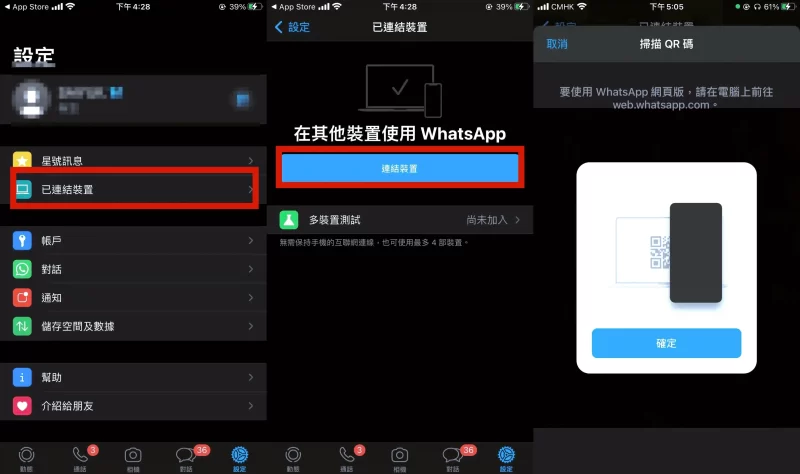
Does WhatsApp Web require a strong internet connection?
Yes, a stable and strong internet connection is essential for WhatsApp Web to function correctly, including loading the QR code.
Can browser extensions affect WhatsApp Web?
Absolutely, extensions like ad blockers or privacy tools can prevent WhatsApp Web from functioning properly. Disabling them may help.
By following these solutions and tips, you should be able to resolve the issue of WhatsApp Web not loading the QR code. It’s important to troubleshoot from multiple angles to find the right fix for your specific situation. With a little patience and the above methods, you’ll be back to chatting in no time!
If WhatsApp Web is not loading the QR code, try clearing your browser’s cache and cookies first. This simple action can often resolve loading issues and improve performance.
Clear Cache
Removing browser cache can resolve loading issues with WhatsApp Web.
Disable Extensions
Turn off unnecessary extensions to improve WhatsApp Web’s performance.
Network Check
Ensure your internet connection is stable for successful QR code loading.
Try Another Browser
Using a different browser might bypass any specific compatibility issues.
Update Browser
Keeping your browser updated can resolve potential bugs affecting WhatsApp Web.
Incognito Mode
Access WhatsApp Web in Incognito to avoid interference from cookies or data.